Super Flow: Your Personal Modular Options Dashboard
How to Set Up Super Flow

Hey all!
Nicholas from the Unusual Whales team, here!
Hey everyone, in today’s article, we’re going to revisit and walk through how to set up and use the Unusual Whales Super Flow Dashboard; something I personally can’t trade without.
Some of you may remember the article about my Scalper’s dashboard using Super Flow, which I use to scalp futures and $SPY. You can read about that setup in this article, but for today, we’re going to keep it pretty basic.
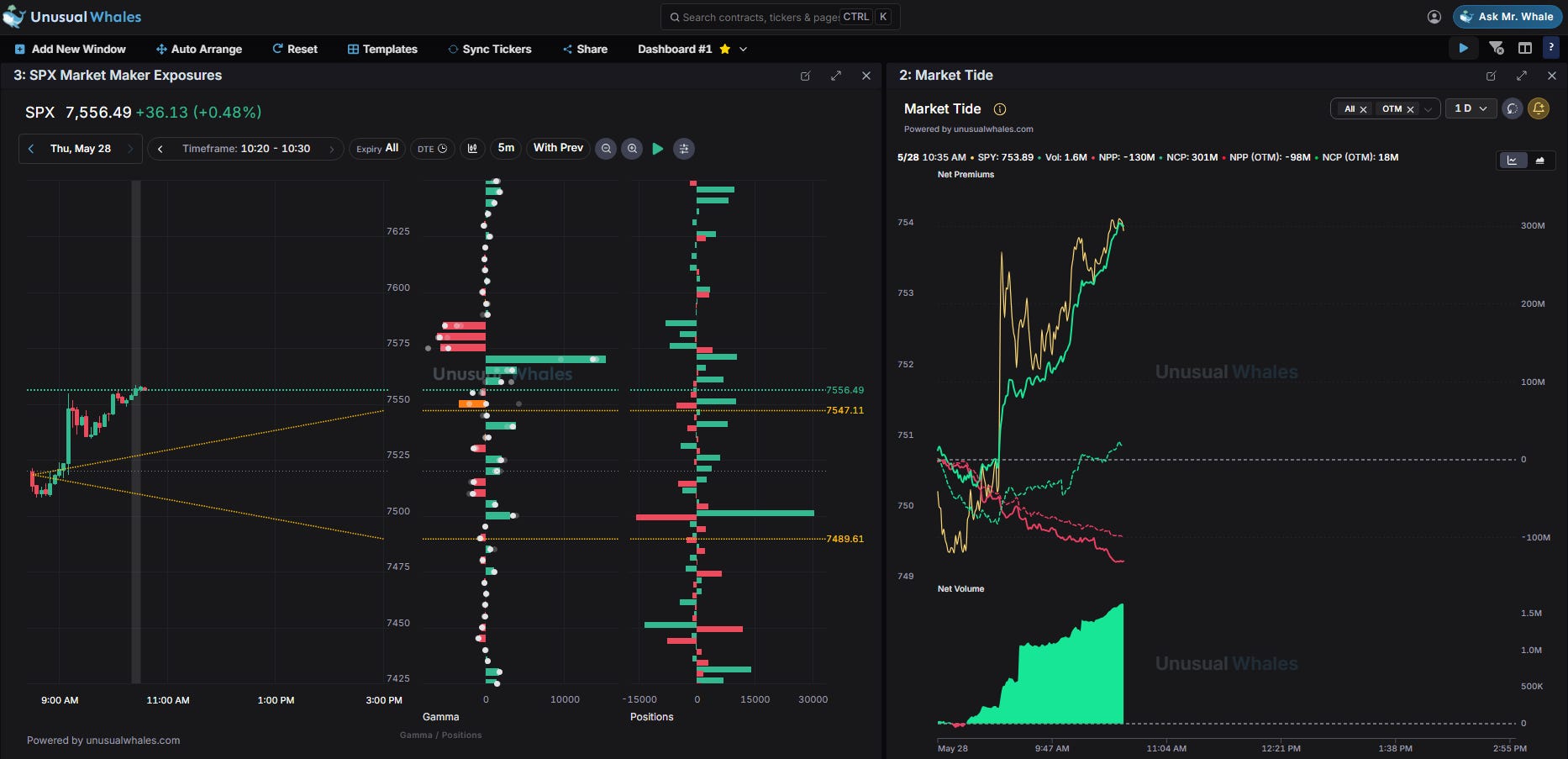
Market Tide Super Flow
Super Flow lets you create up to nine separate saved dashboards. For this walkthrough, we’ll build out a market tide dashboard first, then set up a second dashboard for flow feed filters and alerts.
To start, click “Add New Window” at the top of the dashboard. From there, you’ll choose which type of window you want to add. Super Flow is pretty flexible. You can add stock charts, options flow feeds, dark flow, hot chains, market tide, net flow, and more.
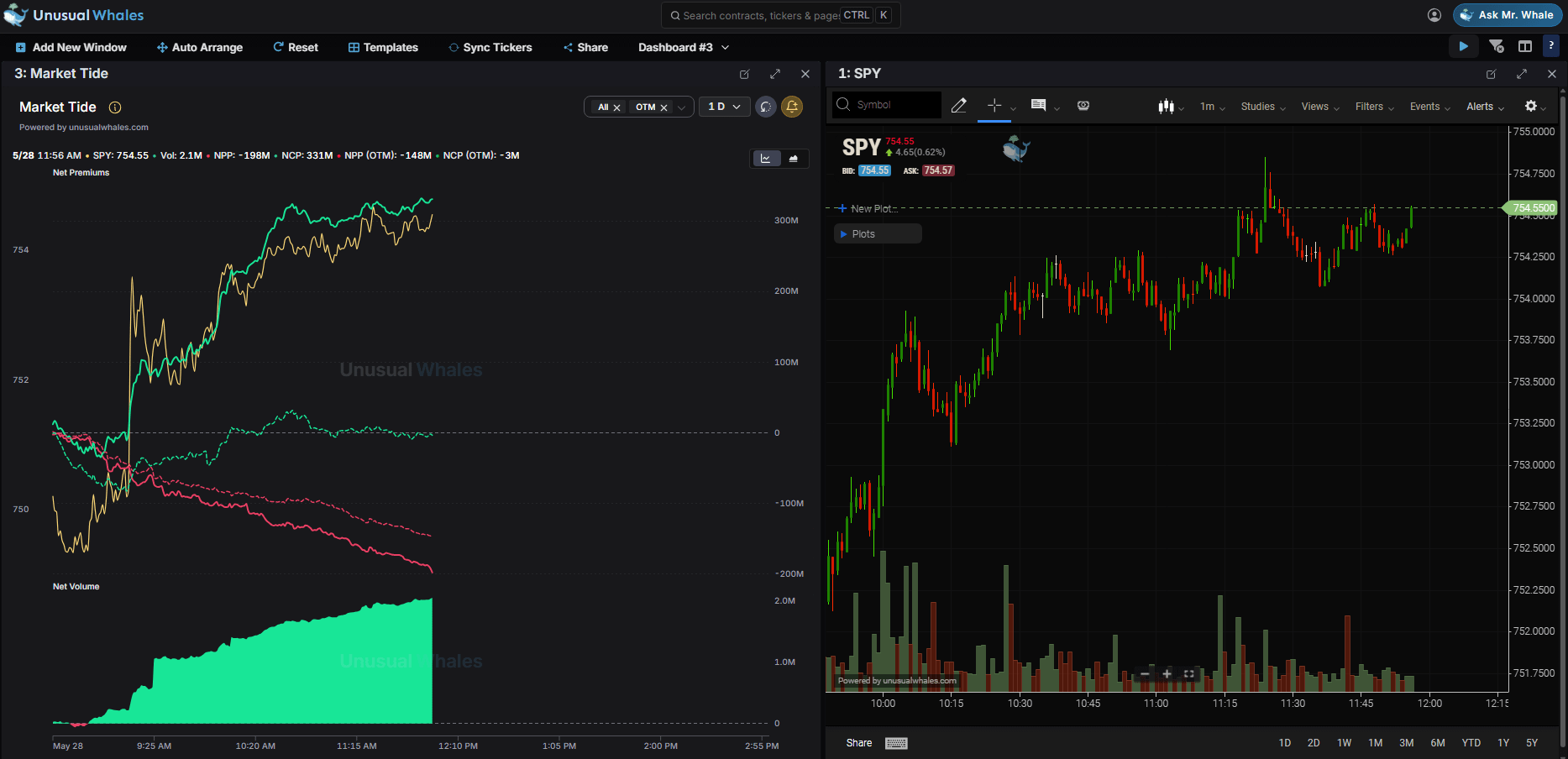
Since I like to watch both the full options premium tide and the out-of-the-money-only tide, I’m keeping both versions visible on the same window tab. The full market tide includes all strikes, including at the money, in the money, and out of the money. The out-of-the-money-only version narrows that down to just OTM contracts. I’ve also added the SPY stock chart for a more granular view at price action than the Market Tide view can provide.
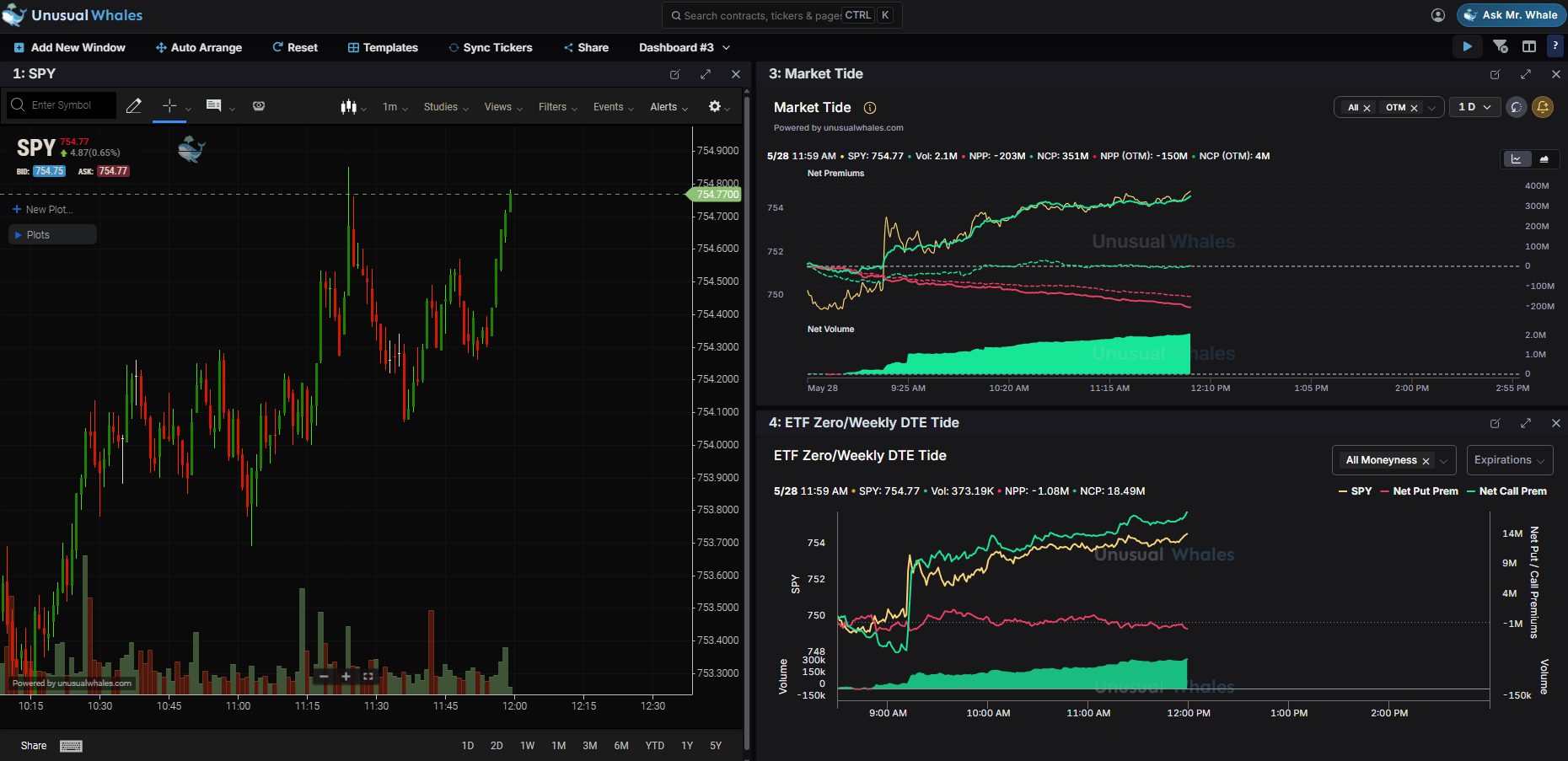
Next, I’m throwing in a 0DTE ETF-only Tide view, that specifically tracks ETF zero day and weekly day expiration net premiums. I’ve also selected “All moneyness” to include all ITM, OTM, and ATM transactions.
That gives us a simple first dashboard built around market tide and SPY activity. You’ll notice the organization of each window is different between images; we’ll get to that in the next section.
Flow Feed Super Flow
Adding flow feeds and flow alerts takes one extra step because Super Flow needs the URL of the filter you want to bring in. Start by adding a flow table window. When it asks for a URL, go to the actual Flow Feed page and open the saved filter you want to use. Then copy the URL from that filtered page and paste it into the Super Flow window.
For the first flow feed window, we’ll use a written puts filter. This tab is named “10K Plus Put Writes” because it pulls in a filter for larger written put orders. Once that URL is added, the filtered flow feed appears directly inside the Super Flow dashboard.
I’m a big fan of using Interval Flow as well, which applies filters to a specific time frame. In this example, we’ll use my Opening ASK side Interval Flow filter that captures flow with >70% of transactions occurring at or near the ask price. Same process: copy the URL from that filtered Interval Flow page, paste it into the new Super Flow window, and name the tab “Opening ASK Interval.”
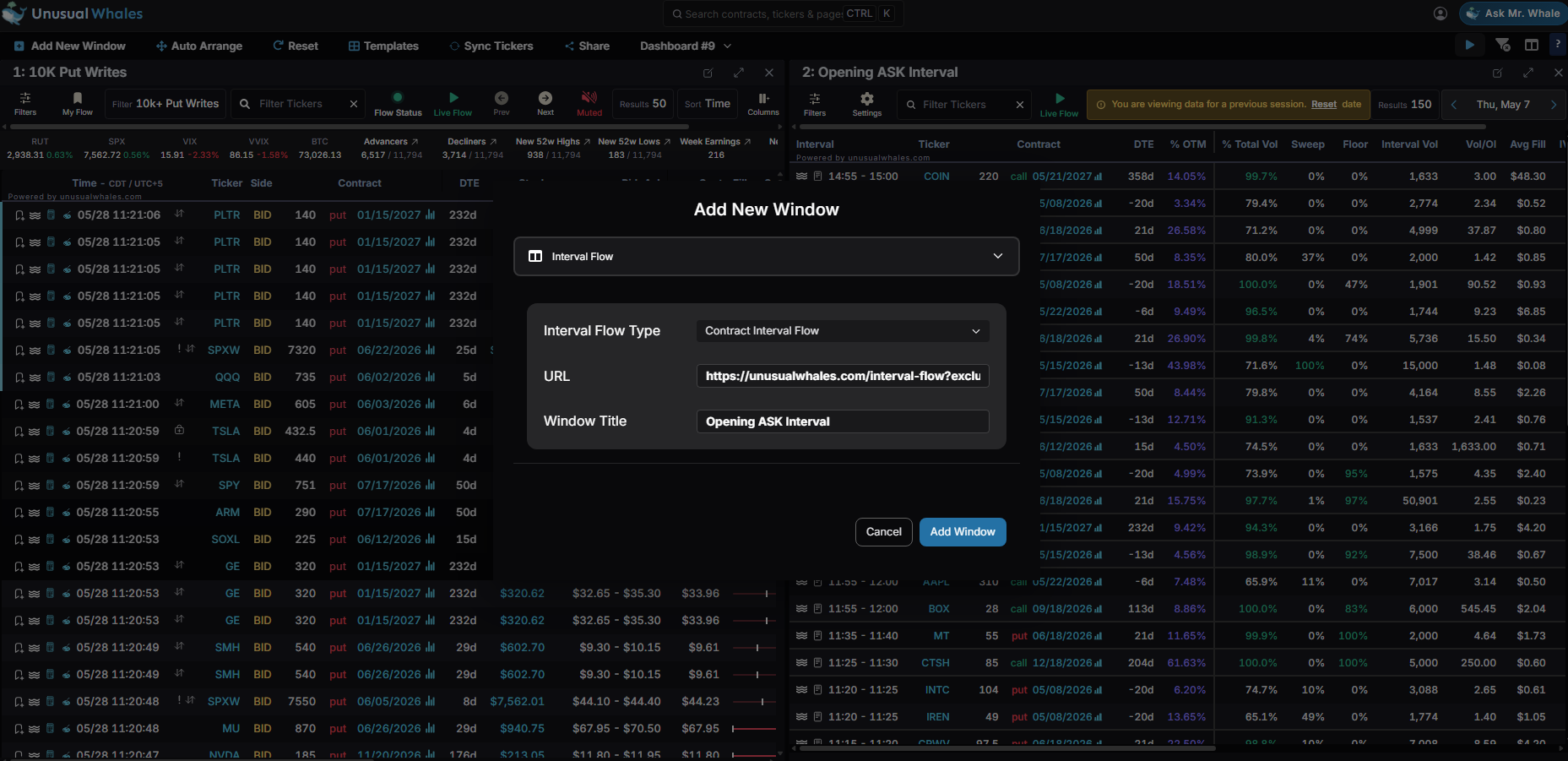
You can also add flow alerts the same way. Add a flow alerts table, go to the Flow Alerts page, open the alert filter you want to track, copy that URL, and paste it into Super Flow. Once added, the alerts window appears alongside the flow feed filters.
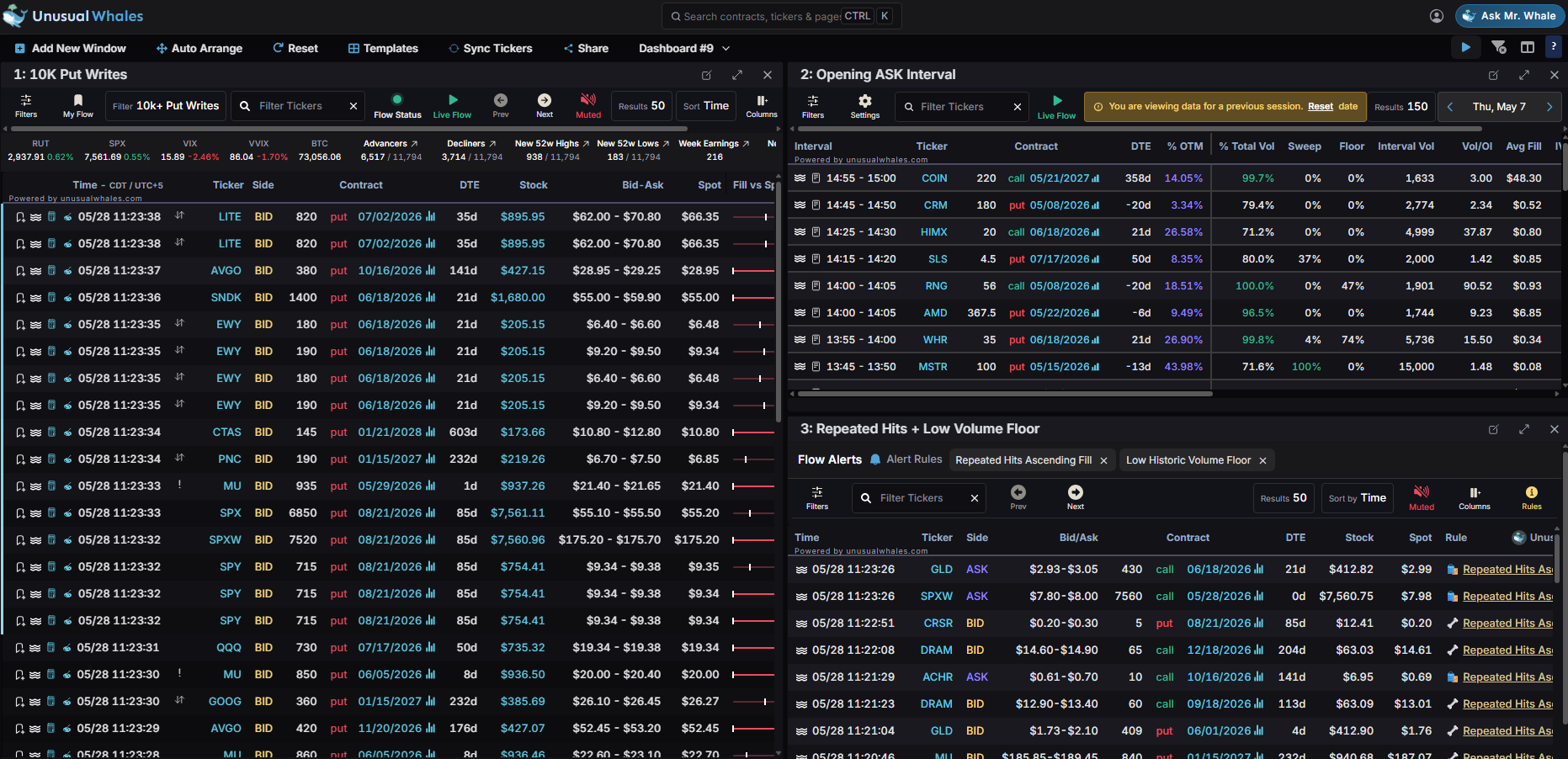
At this point, we have two useful dashboards: one for market tide and SPY activity, and another for specific flow filters and alerts.
Once you have a few windows on the dashboard, you can rearrange them however you want. If the layout starts getting messy, click “Auto Arrange” and Super Flow will clean it up for you. You can also click and drag each window manually if you want more control over the layout.
That’s the basic setup. Super Flow gives you a way to keep market tide, flow feed filters, flow alerts, ETF activity, and charts all in one place without constantly bouncing between pages.
If you want to learn more about building filters, “How to Filter the Flow Feed” is a great place to start. You can also find more walkthroughs in the education playlist on YouTube.
Once your dashboards are set up, you can tab between them whenever you need to monitor your flow, market tides, saved filters, and alerts all from one place!
Thank you as always for reading! REMEMBER!! You can find articles like this and MANY others about Options and the Unusual Whales Platform on the new Information Hub!!
NOTE: This post is not financial advice. The stock market is risky, and any trade or investment is expected to have some, or total, loss. Please do research before any trade. Do not use this information for investment decisions. Check terms on site for full terms. Agree to terms before considering this information.